Tool · Assessment · Free

Rubric Maker.

"Grading should never be subjective."

Build weighted rubrics with custom score bands, print blanks for student-led reflection, or grade live and let the percentages tally themselves. Runs entirely in your browser — nothing to install, no account.

pblmath.com / apps / rm
App type
Grading rubric
Grade level
2+ · any subject
Best for
Weighted criteria
Cost
Free
Why use it

A rubric removes the guessing game.

Grading should never be a subjective process. A rubric is a matrix that shows students exactly how they're being assessed on every part of their project. There should be no mystery about how to reach the highest level of expectation for each criterion.

Best practice: always give students the rubric at the start of a project — or at the very latest, midway through. That gives them time to self-assess against the highest level of expectations before they ever turn the project in.

How it works

Five parts. One rubric.

From defining criteria to grading live, here's the full flow — with screenshots of the actual tool.

Part 01

Define your criteria.

A project should never be assessed one-dimensionally. Break it into the parts that actually matter:

  • Drafts
  • Process journal
  • Reflections
  • The final product

Mechanics like grammar, spelling, and organization can each be their own criterion too. Use the + / − controls on the side to add or remove rows.
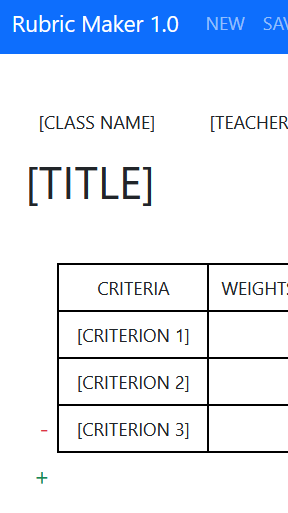
Rubric Maker — adding and editing criteria rows
Part 02

Weights, scores & totals.

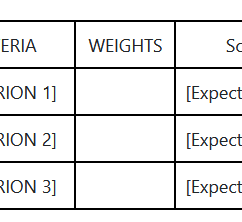
Weights — weigh each criterion like you'd weigh categories in a gradebook. The math work on a math project should carry far more weight than spelling on a reflection. The end goal is always a strong understanding of the mathematics.

Scores — every rubric has vertical scoring bands (often 0–5). Each band tells a student exactly why they earned that score for a criterion.

Totals — weight × score band gives the total for each criterion. The maximum differs per criterion because they're weighted differently. The tool automates all of this for you.

Rubric Maker — setting weights, scores, and automated totals
Part 03

Levels of expectation.

The center of the rubric holds the level-of-expectation text for each scoring band. These explain exactly why a student earned a given score for a criterion — and, by reading one cell to the right, why they didn't earn the next score up.

This is the hardest and most important part of writing a rubric. Take your time here.

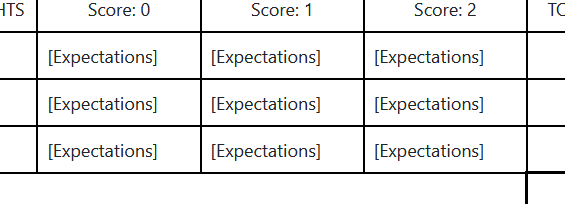
Rubric Maker — writing levels of expectation in each scoring band
Part 04

Reset, save & print.

Save stores your work on this computer (it won't sync across devices, but it survives a browser restart). Reset starts over from scratch.

Print generates a second standalone HTML file — essentially a mini grading app that multiplies and totals for you. Save it locally and double-click to open it in any browser. Once you print, the rubric is locked from further edits.

Rubric Maker — the Reset, Save, and Print menu
Part 05

Grade on the final rubric.

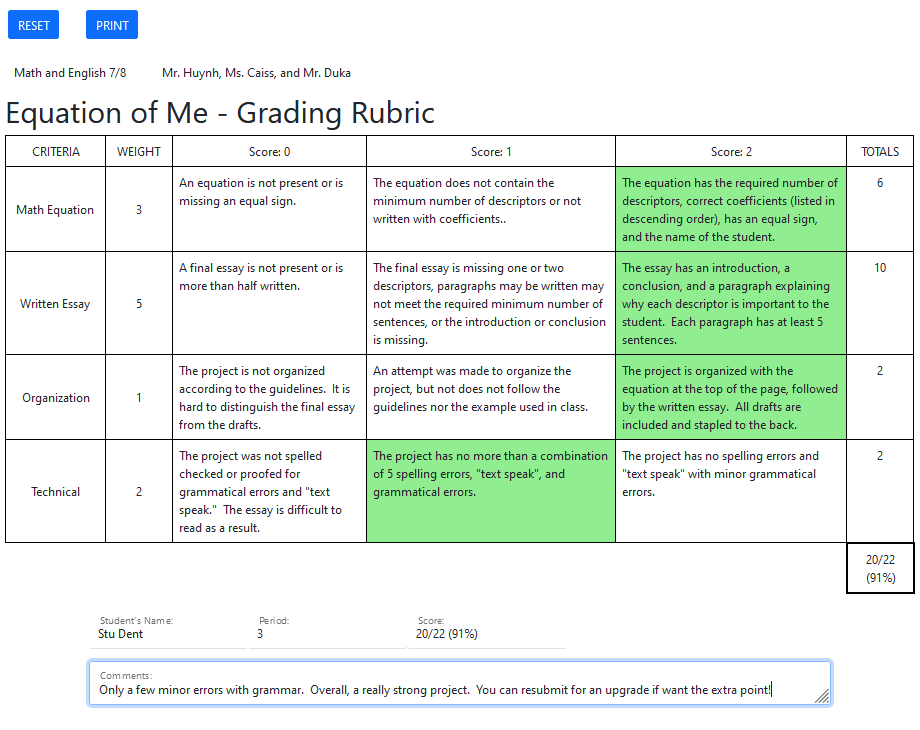
Grading is as simple as clicking the level of expectation for each criterion. The tool highlights the cell, calculates that criterion's total, and keeps a running total for the final grade. Fill in the student's name, period, and any comments.

Print a PDF copy to send (or hand) to the student — drop it in a shared folder if you use one. Then Reset and grade the next project.

Rubric Maker — a completed graded rubric with running total
Example

See a finished rubric.

A real rubric built with this tool for the Equation of Me project.

Ready when you are

Build your first rubric.

No signup, no install — it opens in your browser and saves locally. Spin one up for whatever you're grading next.